3. Screen Coordinates
In-Page Navigation
This tutorial requires PyScratch version 2.1.0 or above.
Scratch-Block Corresponding Functions
Most of the Scratch blocks has a corresponding function in PyScratch. You can find the corresponding functions of the Scratch blocks side-by-side on this page.
Let say we want to move the chest to coordinate (200, 300) when it is clicked.
From this page, we can see this is what we do:
@chest.when_this_sprite_clicked()
def chest_click_event():
    chest.x = 200
    chest.y = 300
    # or chest.set_xy((200, 300))
But where is coordinate (200, 300) in the game?
Screen Coordinates
How to find the coordinates
- The bottom-right corner shows the coordinate of the mouse pointer
- The gridlines have a spacing of 100
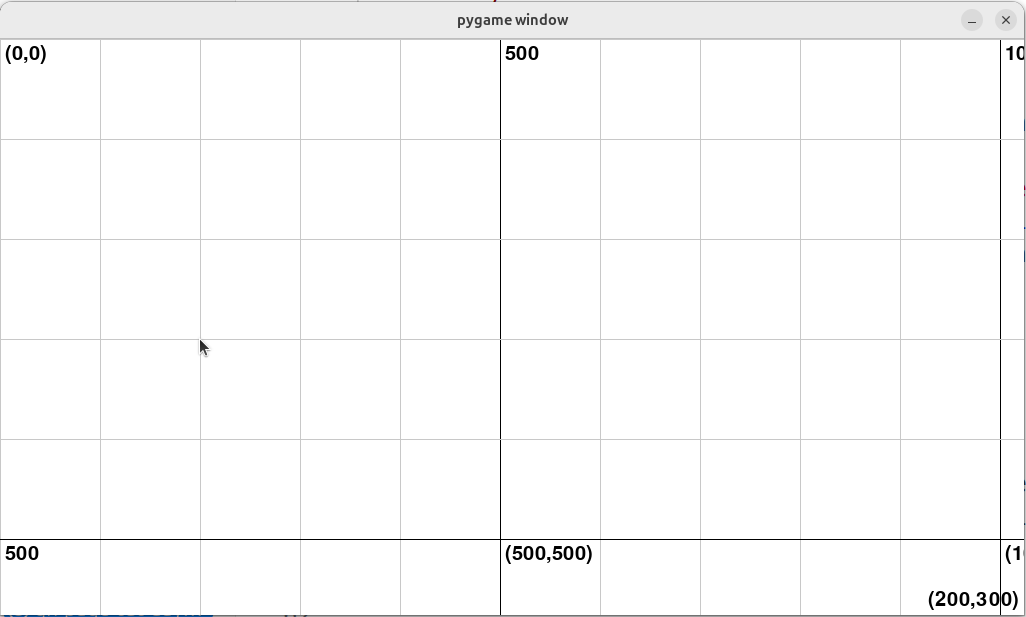
Regardless of the window size:
- The top-left corner is always (0, 0)
- As x increases, the coordinate goes to the right
- As y increases, the coordinate goes to down
The window size in this photo is (1024, 576), so
- x=1023 would be the right edge
- y=575 would be the buttom edge
- (1023, 575) woudlbe the the buttom-right corner
Why is the bottom-right corner is one pixel off?
Let say the window size is (100,100). This means there’s 100 pixels in the x direction (horizontal) and 100 pixels in the y direction (vertical).
Counting from the 0th pixel to the 99th pixel, including the 0th pixel, there’d be 100 pixels. Therefore the last pixel would be the 99th pixel.
Demo: Move the chest to the center of the window when clicked
For example, we want to change the size and position of the chest when it is clicked.
chest.py
import pyscratch as pysc
from pyscratch import game

chest = pysc.create_single_costume_sprite("assets/chest-open.png")

@chest.when_this_sprite_clicked()
def set_size_position():
    """
    Put a description of this event here for readability
    """
    # make it smaller
    chest.set_scale(0.5)

    # put to the middle of the screen
    chest.x = game.screen_width/2
    chest.y = game.screen_height/2
Explanation for the features used
- chest.set_scale(0.5): set the size of the chest to be 50% of the original
- game.screen_width: this gives you the width of the game window (1024 in this case)
- game.screen_height: this gives you the height of the game window (576 in this case)
- A half of the width and height would be around the centre of the window ((512, 288) in this case)
Now save it and run the game (by running main.py)!
Example
It’s Now Your Turn!
Task 1: Set the size and position of the chest when the game start
- Keep the same function from the example, but use
when_game_startinstead ofwhen_this_sprite_clicked.
Remember to save the sprite files before running
main.py!
Task 2: Make the enemy reappear in a new random location when it is clicked
- Remove
enemy.set_draggable(True)to disable dragging - In the example, we assigned the half window width and the half window height to the x & y of the chest. Here, we just need to assign random numbers to the x & y of the enemy.
This is one way to generate a random number
my_number = pysc.random_number(0, 100)
print(my_number) # my_number will be a random number between 0 and 100
The game might look like this
Task 3: Explore other Scratch-block corresponding functions in the event
- For example, try making the enemy turns a little bit when you click it.
Remember to save the files before you run
main.py!