4. Loops & Conditions (if/else)
In-Page Navigation
This tutorial requires PyScratch version 2.1.0 or above.
I assume you already know the basics of loops and conditions (if/else).
Demo 1: Fade out effect when the enemy is clicked
We want the enemy to shrink and fade out when it is clicked before it reappears somewhere else.
This is what you would do in in Scratch:
Scratch
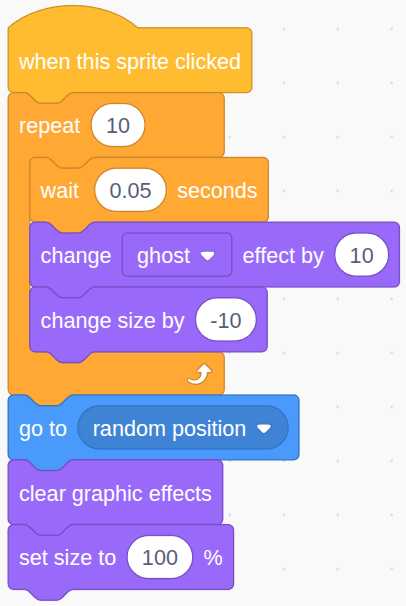
In PyScratch, it would be similar:
enemy.py
@enemy.when_this_sprite_clicked()
def clicked():
    """
    change the enemy location with a fade out effect
    """
    # make the enemy smaller and paler
    for i in range(10): # this is a repeat loop (10 repeats)
        yield 0.05 # wait for 0.05 second
        enemy.set_transparency(1-i/10) # make the enemy paler each step. if you find this confusing, do print(1-i/10)
        enemy.scale_by(0.9) # make the enemy 10% smaller each step

    # change the location of the enemy
    enemy.x = pysc.random_number(0, game.screen_width)
    enemy.y = pysc.random_number(0, game.screen_height)

    # put the size and transparency back to normal
    enemy.set_transparency(1)
    enemy.set_scale(1)
Explanation for the features used
- for i in range(10): a repeat loop of 10 times
- yield 0.05: wait for 0.05 second
- enemy.scale_by(0.9):
- change the size to be 90% of the current size.
- very similar to “change scale by -10”
- enemy.set_transparency(1-i/10):
- the ghost effect, with 0 being completely transparent, 1 be completely opaque.
iincreases by 1 in each iteration, so to transparency would decrease like this:- 1-0/10 = 1
- 1-1/10 = 0.9
- 1-2/10 = 0.8
- …
- 1-9/10 = 0.1
When directly translated back to Scratch, this would be similar to:
Scratch
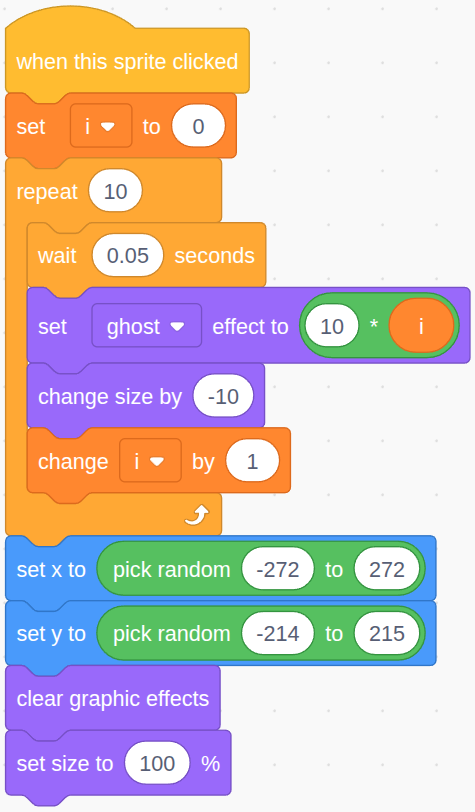
The main differences are as follow:
- The ghost effect of 0 in Scratch is the transparency of 1.0 in PyScratch
- There is no “change ghost effect by” in PyScratch
- In Scratch, (0,0) is the centre of the screen but in PyScratch it is the top-left corner
The game would look like this
Wait (yield) in the Loop
It is essential to wait (yield) in the loop!
Python will put everything aside to run the loop as quickly as possible, unless you ask it to wait. Without waiting, a repeat loop (
forloop) for 1000 times will be finished almost instantly and a forever loop (while True) without waiting will get the program stucked forever.In this library, we use yield as the wait block in Scratch. For example,
yield 0.5means wait for 0.5 second.
Demo 2: Enemy Movement using a Forever Loop
We want the enemy to move to the centre of the window but avoid the mouse when it’s close..
enemy.py
@enemy.when_game_start()
def movement():
    """
    the movement of the enemy
    """
    speed = 5
    centre = (game.screen_width/2, game.screen_height/2)

    while True:
        # wait for one frame
        yield 1/60 # or 1/game.framerate

        # get the enemy's distance to the cursor location
        mouse_x, mouse_y = pysc.get_mouse_pos()
        distance_to_mouse = enemy.distance_to((mouse_x, mouse_y))

        # enemy avoids the mouse when it is close to the mouse
        if distance_to_mouse < 200:
            enemy.point_towards_mouse()
            enemy.direction += 180
            enemy.move_indir(speed)

        # otherwise, go to the centre of the screen
        else:
            enemy.point_towards(centre)
            enemy.move_indir(speed)
Explanation for the features used
- pysc.get_mouse_pos(): returns the mouse coordinate
- enemy.distance_to((mouse_x, mouse_y))
- get the distance between the enemy and the coordinate
(mouse_x, mouse_y)
- get the distance between the enemy and the coordinate
- enemy.point_towards_mouse(): rotate the enemy towards the mouse
- enemy.point_towards(centre)
- this is evaluated to
enemy.point_towards((game.screen_width/2, game.screen_height/2)) - rotate the enemy towards the centre of the window
- this is evaluated to
- enemy.direction += 180: rotate the enemy 180 degrees
- enemy.move_indir(5): move the enemy 5 pixels in the direction of the sprite
The Hexagon Slot in the If-Statement
In Scratch, the if-block would have a hexagon slot that only takes in the hexagon blocks.
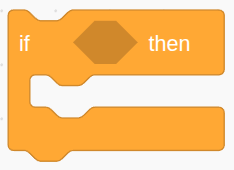

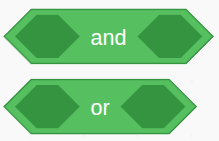
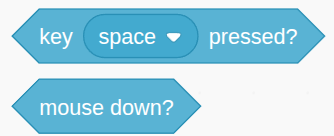
These hexagon blocks are always some sorts of a condition, that can only be one of the two states: True or False. In Python, this is known as a boolean variable.
The if keyword in Python always expect a boolean variable to follow, just like that the if-block on Scratch expects a hexagon block.
Example
These four if-statements below are all valid and almost equivalent.
mouse_x, mouse_y = pysc.get_mouse_pos()
distance_to_mouse = enemy.distance_to((mouse_x, mouse_y))
is_close_to_mouse = distance_to_mouse < 200

# all these four ways are valid and almost equivalent
if is_close_to_mouse:
    pass
if distance_to_mouse < 200:
    pass
if enemy.distance_to((mouse_x, mouse_y)) < 200:
    pass
if enemy.distance_to(pysc.get_mouse_pos()) < 200:
    pass
It’s Now Your Turn!
Task 1: Experiment with yield
- Try removing the
yieldline in the first demo event (in the for loop) - Try removing the
yieldline in the second demo event (in the while loop) - Expect the program to freeze! - Try putting a longer or shorter wait time in the demo events
Task 2: Add a new sprite, named “friend”
- Use an image of a fish for this sprite.
Remember to import the new sprite to
main.py!
Task 3: Add the movement of the friend fish
- The friend fish should have the same movement logic as the enemy:
- It moves to the centre of the screen.
- It avoids the cursor when it is getting close.
- You may copy the relevant event from the example and make appropriate changes to make it work for the friend fish.
Task 4: The friend fish disappears and reappears somewhere random when it is near the centre of the window
- Do not use
is_touching. This will come in day 2. - When the distance of the friend fish to the centre is smaller than a certain threshold, change its location randomly.
- You can create a new
when_game_startevent with a forever loop to check this condition.
The game might look like this
You might want to create the fade out effect for the friend fish as well.
Tips
- If you find it hard, think about how you would do it if it is on Scratch.
- Remember to wait (
yield) in the loop! - Remember to save the files before you run.